

The first time someone asked me what is simulation distance in Minecraft is, I gave the wrong answer. I thought it was just another name for render distance, so I never paid attention to it. A few days later I built a small wheat farm beside my house and went exploring for nearly an hour. When I came back, I expected a chest full of crops. Almost nothing had changed. My redstone machine had stopped too. At first I blamed the game. After reading more and testing different settings, I found out the real reason was simulation distance.
It’s one of those locations you don’t know about until you need it. Once you know what it does, a lot of the bizarre things in Mine Craft start to make sense. It’s involved with farms, villages, mobs, and redstone in one way or another. If you’ve ever been confused by this option, don’t worry. That threw me off also. “Let’s say it as bluntly as we can.
What Is Simulation Distance?
Simulation distance is the part of your Minecraft world that stays active around your character. While you are inside that area, the game keeps updating almost everything around you. That means crops continue growing. Villagers keep doing their jobs. Animals move around. Redstone machines keep working. Mobs behave the way they normally should.
When those chunks are too far away, Minecraft slows things down by stopping most of those updates. The chunks are still saved in your world, but they are no longer active until you get close again. Think about your house in Minecraft. If you are standing nearby, everything around it feels alive. Your wheat grows a little more every few minutes. Villagers walk between their workstations.
Chickens wander around the pen. Now travel thousands of blocks away. Your house is still there, but most of those activities pause because the game is no longer updating that area. Minecraft does this to save computer resources. Instead of keeping the whole world active, it only focuses on the area around the player.
Simulation Distance vs Render Distance
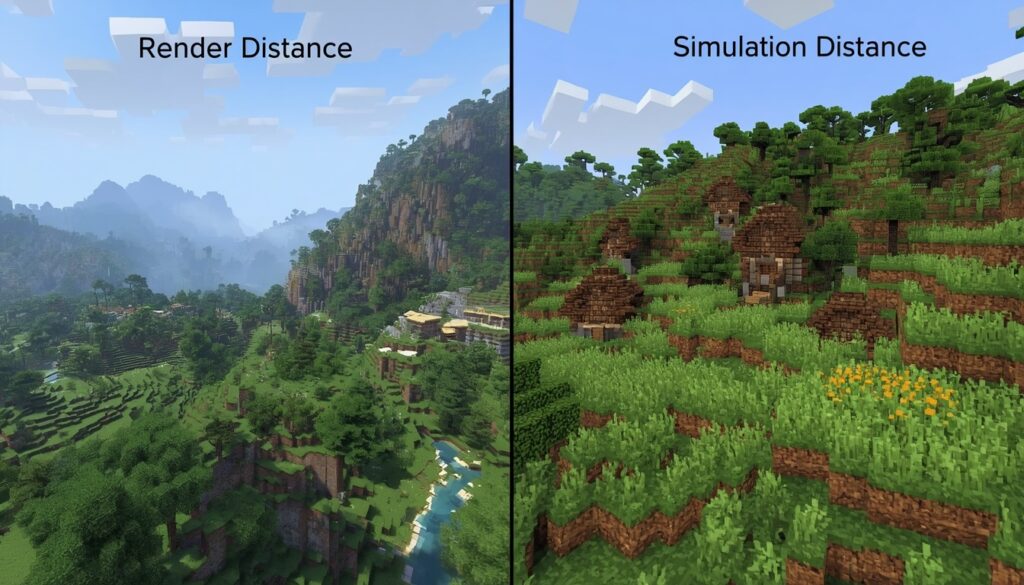
These two settings sound almost the same, which is why so many players mix them up. I used to think increasing render distance would keep my farms working while I explored. It looked like the right answer, but it wasn’t. Render distance only changes how far you can see.
If you increase it, distant mountains, villages, forests, and buildings appear from much farther away. Your view becomes larger, but the game is not doing extra work behind the scenes. Simulation distance controls something completely different. It decides how much of the nearby world keeps running.
You might still see your village sitting on a hill because your render distance is high. That does not mean the villagers are farming or your iron farm is producing golems. If the village is outside the simulation area, most activity there has already stopped. If you want to learn more about chunks and how Minecraft processes the world, you can also check the official Minecraft Wiki.
How Simulation Distance Works
Minecraft is divided into chunks. A chunk is simply a small section of your world. As you walk around, the game loads new chunks and unloads the ones you leave behind. Only the chunks inside your simulation distance stay active. Imagine your simulation distance is set to six chunks.
If your farm is inside those chunks, crops continue growing. Villagers keep working. Animals wander around as usual. Redstone clocks continue ticking. Now leave your base and travel far enough that those chunks fall outside the active range. Your farm stops making progress. Villagers freeze in place until you return. Redstone machines stop updating. Nothing has broken. Minecraft is simply saving processing power by pausing distant chunks.
I remember testing this with a bamboo farm. I stayed close to it for about twenty minutes, and it produced plenty of bamboo. Later I left to search for a desert temple. When I came back after a long trip, the farm had barely collected anything new. That small test helped me understand how chunk activity really works.
Why Simulation Distance Matters
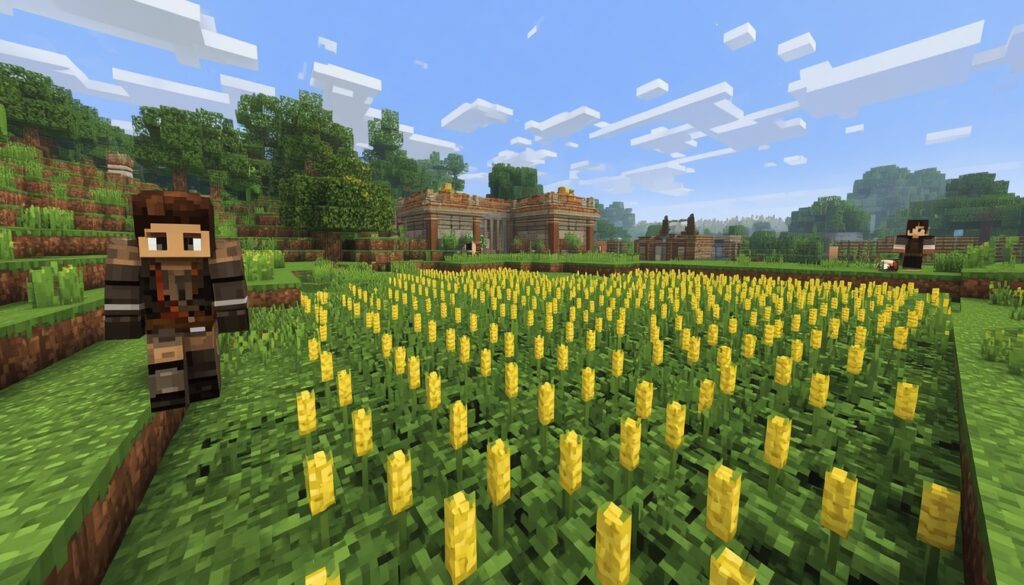
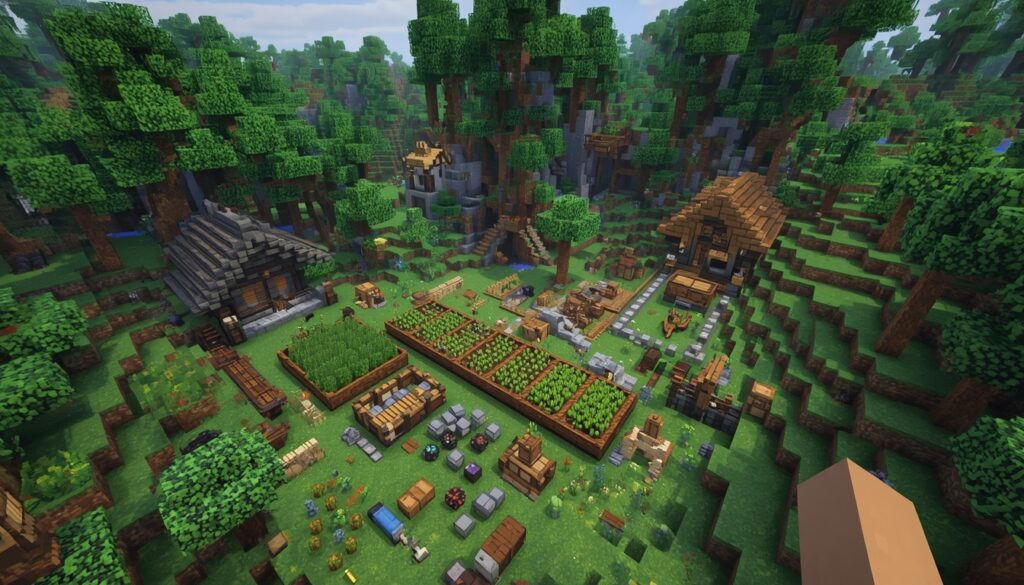
Many players never change this setting, and for basic survival that is completely fine. Things become different once you begin building automatic farms or using villagers. An iron farm depends on villagers moving normally. A crop farm needs active chunks for plants to grow. Mob farms work best while nearby chunks stay loaded. Redstone machines also rely on regular game updates. If those chunks stop updating, the farms slow down or stop until you come back.
This is one reason experienced players often build their farms close together instead of spreading them across the map. Keeping everything near your main base makes it easier for the game to keep those chunks active while you build, craft, or organize your storage. It also saves time because you spend less time traveling between important builds.
Best Simulation Distance for Different Players
There is no perfect number that works for every player. Your computer, your world, and the way you play all make a difference. On my older laptop, I usually stay around six chunks. The game feels smooth, and my nearby farms keep working without any noticeable lag. When I play on a stronger desktop, I can safely increase the value to ten or twelve chunks because the hardware handles the extra work without any problems.
Here is a simple guide if you are not sure where to begin. Start with a lower value if you are unsure. You can always increase it later after checking how your game performs. Small changes usually work better than jumping straight to the highest setting.
Does Higher Simulation Distance Cause Lag?
Yes, it can. Every active chunk gives Minecraft more work to do. Villagers continue thinking about their jobs. Animals keep moving. Crops grow. Mobs spawn and wander around. Redstone keeps updating every game tick. All of that uses your computer’s processing power. If your hardware is strong, you may never notice the extra work.
Older computers are less forgiving. Raising the setting too high can lower your FPS, increase chunk loading time, or cause small freezes while exploring. That is why I never recommend copying someone else’s settings without testing them first.
Increase the value little by little. Play for ten or fifteen minutes. Visit your farms, explore nearby caves, and watch how your game feels. If everything stays smooth, keep the new setting. If the game starts struggling, lower it again until you find the balance that works for your system.
How to Change Simulation Distance
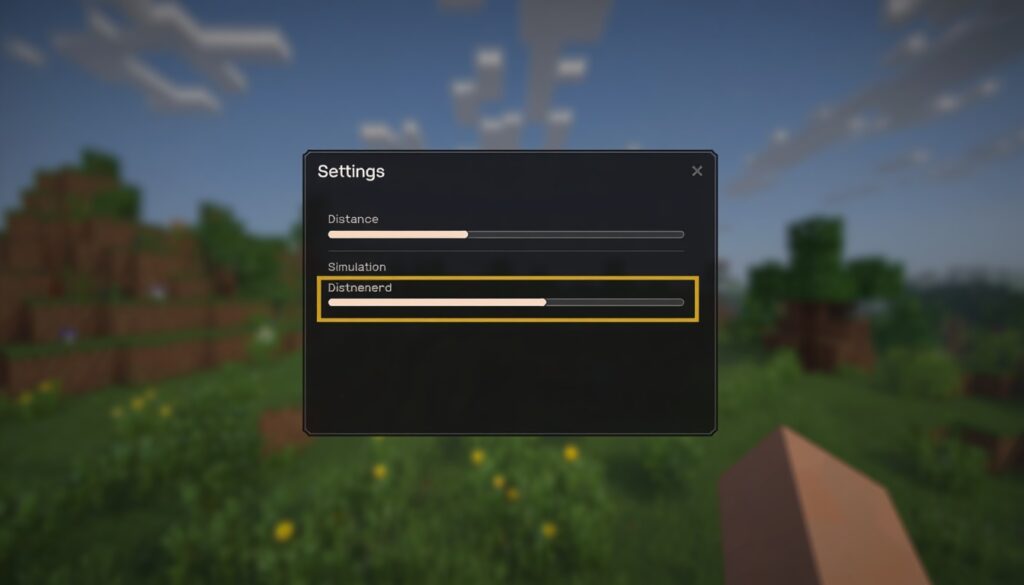
If you want to adjust this setting, you can do it in less than a minute. In Minecraft Java Edition, open Options, then go to Video Settings. Look for the Simulation Distance slider. Move it to the value you want, save the settings, and return to your world. In Minecraft Bedrock Edition, open Settings, choose Video, and scroll until you find Simulation Distance.
Move the slider, close the menu, and you’re done. I normally avoid making big jumps. If my world is running at six chunks, I’ll try eight first instead of going straight to the maximum. That makes it easier to notice if performance changes. Things are a little different on multiplayer servers. Many server owners choose one simulation distance for everyone. Even if you change the setting on your own device, the server may still use its own limit.
Java Edition vs Bedrock Edition
The setting exists in both versions of Minecraft, but it doesn’t always behave in exactly the same way. Java Edition gives players more freedom to adjust game settings. If you enjoy building large farms or complicated redstone systems, Java offers more room to fine-tune your world. Many technical players prefer it for that reason.
Bedrock Edition is built to run on many different devices, including phones, tablets, consoles, and Windows PCs. To keep performance stable, it often uses lower default values. I noticed this while testing the same iron farm in both versions.
The farm worked well in each one, but I had to pay more attention to the simulation settings in Bedrock because the defaults were lower. If you play on Realms or public servers, the server owner may also limit the simulation distance. In that case, you cannot always increase it yourself. For additional settings and gameplay information, visit the official Minecraft Help Center.
Common Mistakes Players Make
One mistake stands above all the others. Players think render distance and simulation distance are the same setting. I made that mistake during one of my survival worlds. My automatic wheat farm wasn’t growing while I explored. I increased the render distance, thinking that would solve it. The world looked better, but the farm still refused to work.
The problem was never render distance. Another mistake is placing important farms too far from your main base. It feels nice to spread builds across the map, but Minecraft only keeps nearby chunks active. If your iron farm is hundreds of blocks away while you’re busy mining somewhere else, it may stop producing until you return.
Some players also believe the highest number is always the best choice. That isn’t true. A higher simulation distance only helps if your computer can handle it. Otherwise, you’ll trade smooth gameplay for extra lag.
Best Settings for Survival Worlds
For most survival players, a medium setting works best. Six to eight chunks is enough for everyday gameplay. Nearby farms continue working, villagers stay active, and performance usually remains smooth. If you have a stronger computer and spend most of your time building one large base, increasing it to ten or twelve chunks can make sense.
Players with older hardware should not worry about using lower values. Minecraft is much more enjoyable when it runs smoothly than when every few steps cause frame drops. One thing I learned over time is that good settings depend on how you actually play. If you spend hours exploring distant biomes, your home farms will eventually stop updating no matter how high the setting is. Staying nearby is still important.
Does Simulation Distance Affect Farms?
Yes. Almost every automatic farm depends on active chunks. Whenever the game stops updating an area, farm production slows down or stops until you come back.
I used to build farms wherever I found empty land. Later I realized that keeping them close together saved a lot of time. Everything kept working while I sorted items, crafted tools, or built new structures around my base. That small change made my survival world feel much more efficient.
What Is the Right Simulation Distance?
There isn’t one answer for every player. Increasing the setting means more of the neighboring chunks can be kept active, assuming your computer is powerful enough and your world runs smoothly. That can help if your base has numerous fields or many villagers. If your game already suffers from FPS issues, reducing the setting is frequently a smarter choice.
Many players spend hours looking for the optimum configuration online. In my experience, the ideal setting is just the one that matches your computer. Try one value. Play for a little while. Look at the farms. Explore caverns nearby. If it all feels good, leave it. If the game starts to slow down, cut it down a couple portions. A few minutes of testing is better than duplicating someone else’s numbers.
Final Thoughts
You can easily disregard simulation distance until something breaks in your world. Then it is one of the most essential locations in the game. Understanding how active chunks function makes solving problems with farms, villages, and redstone much easier. You don’t need the greatest value to have fun with Minecraft. All it takes is a habitat to keep your world spinning and your computer room to breathe. Spend some time experimenting. After a couple of tests you’ll quickly find the value that feels correct for your personal world.
Faqs
What is the Minecraft simulation distance?
Simulation distance regulates how many chunks around you are active. Within those chunks, crops grow, mobs move, villagers work, and redstone updates.
What’s the ideal simulation distance for MineCraft?
Most players do fine with six to eight portions. With a powerful computer you can turn it up without losing performance.
Is the simulation distance the same as the render distance?
No, render distance is how far you can see, while simulation distance is how far the game keeps the world active.
Why do my Minecraft farms die when I go away?
If you go too far away, then your farms can exit the active simulation area. Most farm activities stop until you come back.
Does distance to simulation impact FPS?
Yes. The greater the simulation distance, the more pieces Minecraft updates at the same time. Older PCs can drop fps and make the game feel less fluid